> For the complete documentation index, see [llms.txt](https://docs.element.market/welcome-to-element/llms.txt). Markdown versions of documentation pages are available by appending `.md` to page URLs; this page is available as [Markdown](https://docs.element.market/welcome-to-element/forcreators/launchpad/drop-creator-support/part-3-design-drop-page.md).
# Part 3: Design Drop Page
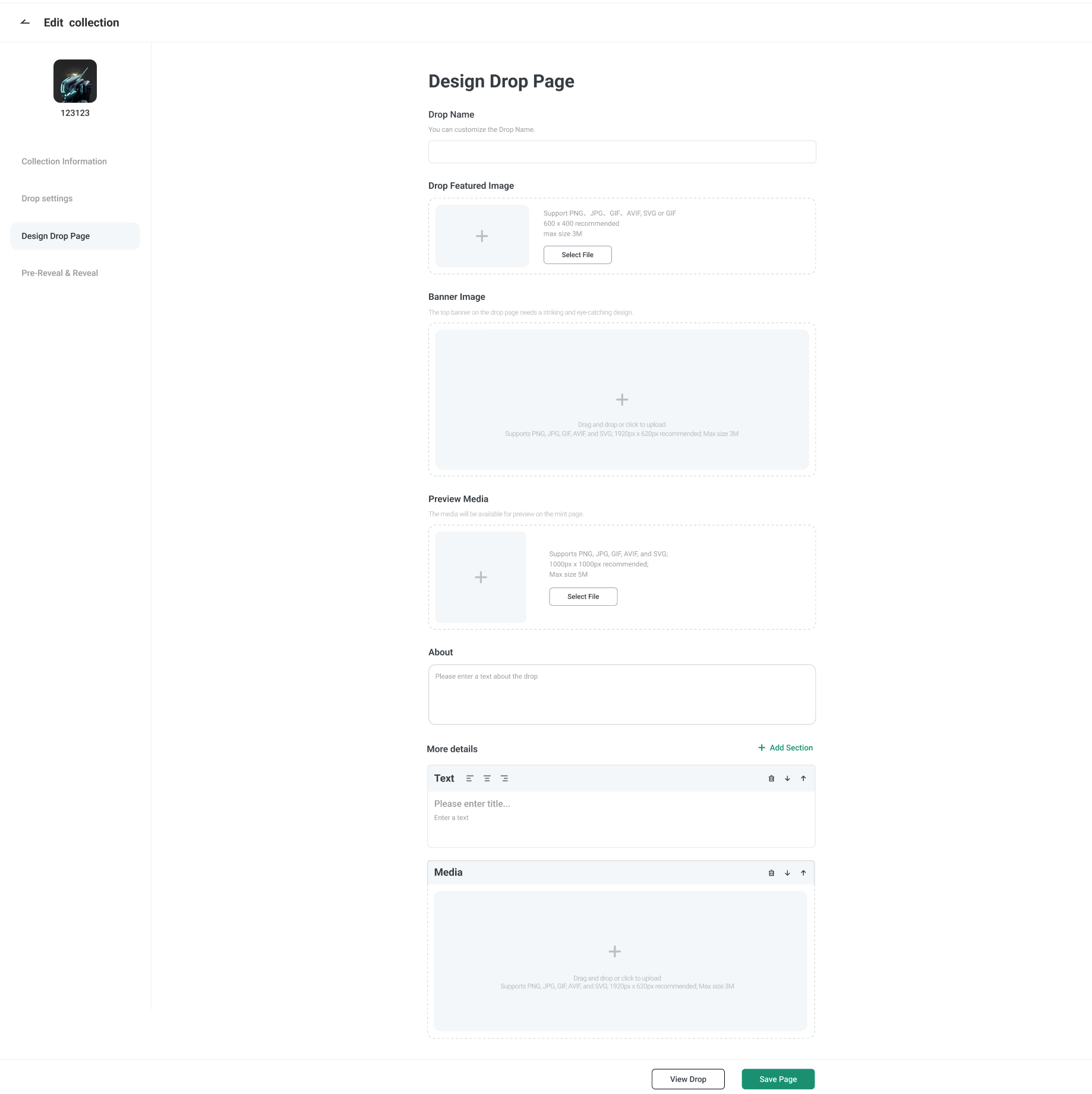
Now that you've configured your drop mechanics, it's time to create a beautiful drop page. This will be your landing page when customers come to mint an NFT from your collection.
* Here you can showcase your design and introduce your project.
* Click "View Drop" to preview the drop page.
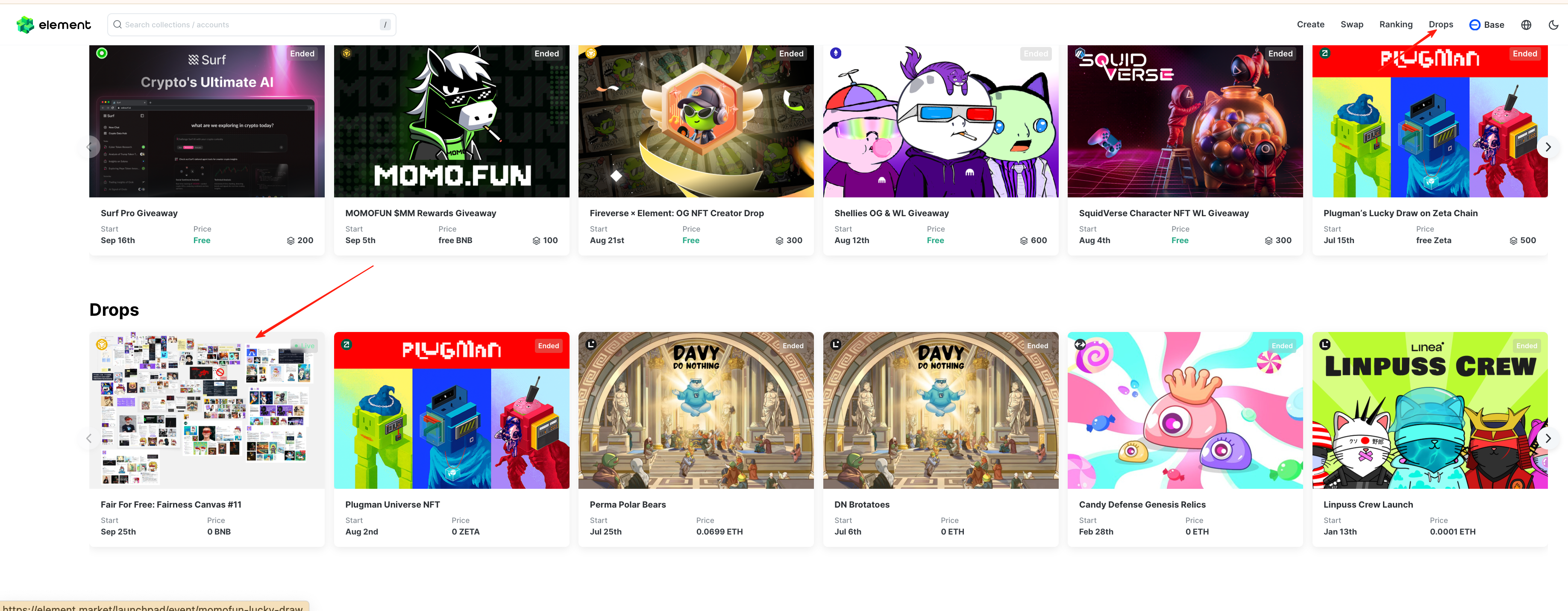
**Drop Featured Image**\
If your drop stands out, it has the chance to be featured in the Drops Spotlight, giving it premium visibility and attracting a wider audience of potential collectors.
**Banner Image / Preview Media**